Tutorial • 12 min read
Free Minecraft Server 1.21 Setup Guide - Complete Walkthrough
Learn how to create your own free Minecraft 1.21 server on gg-s.org and enable Bedrock support. Step-by-step guide with images.
Free Minecraft 1.21 Server Setup - Complete Guide
Do you want to start your own free Minecraft server without technical knowledge or any costs? On gg-s.org, you can do it in just a few minutes! This step-by-step guide shows you how to create a server, connect to it, and even add Bedrock players.
Step 1: Create an account on gg-s.org
The first step is simple: visit the registration page and create your free account.
1.1 Fill out the registration form
Go to https://gg-s.org/register and complete the following information:
- Email address: Use a valid email address
- Username: Choose a unique username
- Password: Create a secure password
1.2 Confirm your email and activate your account
After registration, you will receive a confirmation email in your inbox:
1. Open your email
2. Click the confirmation link
3. Your account is now activated and ready to use
Note: Also check your spam folder if the email does not arrive immediately.
Step 2: Create your first Minecraft server
Once your account is activated, you can immediately create a server.
2.1 Open the server dashboard
1. Log in to gg-s.org
2. Click "Create Server" or "New Server"
2.2 Configure your server
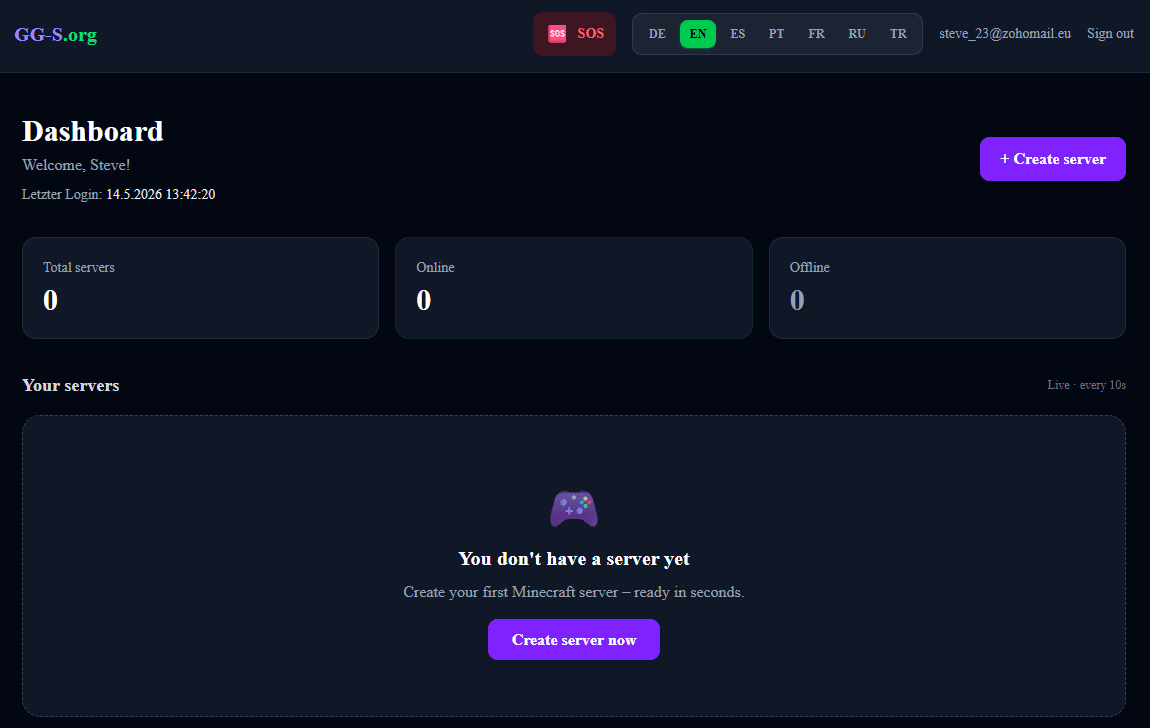
Enter the following details:
- Server name: Choose a descriptive name (e.g. "My Adventure Server")
- Game version: Select Minecraft 1.21
- Game mode: Optional - Survival, Creative, or Adventure
- Server type: Java Edition (or Bedrock if desired)
Click "Create" and your server will be deployed instantly!
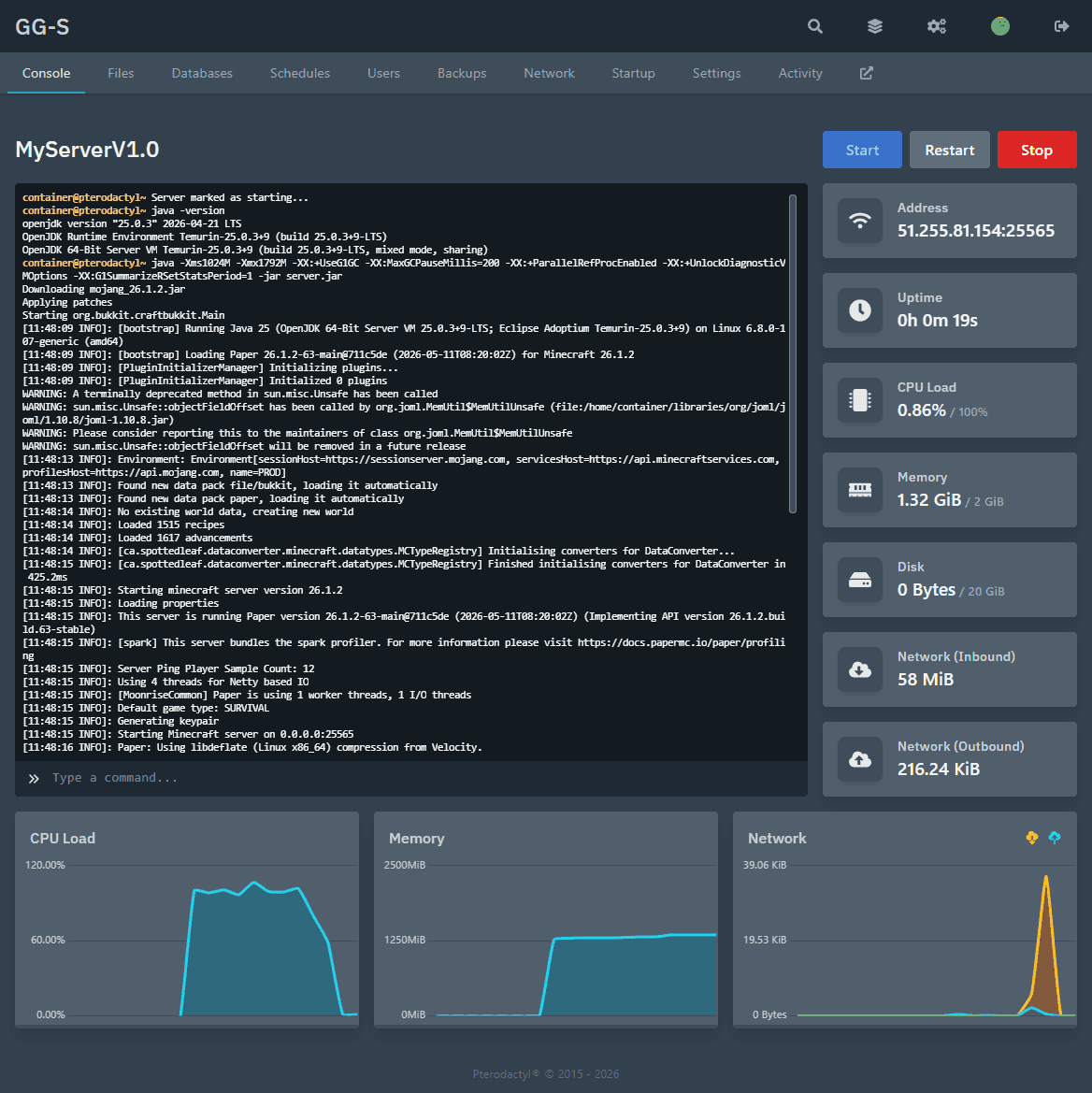
2.3 Understanding the server dashboard
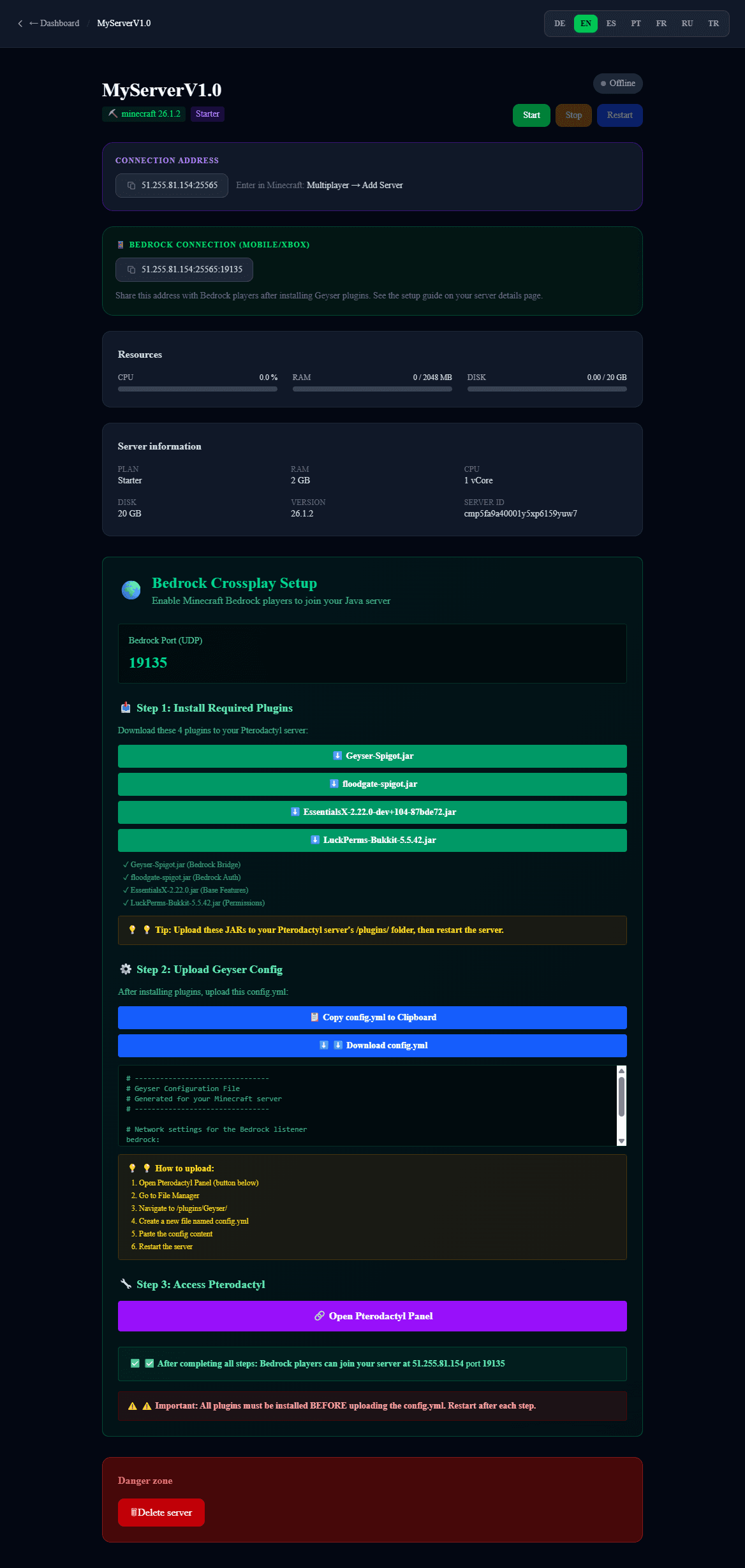
Your server dashboard includes:
- Server status: Current state of your server (Online/Offline)
- Player count: Number of active players
- Server IP: Your unique server address
- Management tools: Control players, plugins, and settings
Step 3: Connect to your Minecraft server
Now it’s time to play on your new server!
3.1 Copy your server IP
1. Open your server dashboard
2. Find the "CONNECTION ADDRESS" or "Server IP" button
3. Click it and copy the IP address
3.2 Connect using Java Edition
Start Minecraft Java Edition:
1. Open Minecraft
2. Click "Multiplayer"
3. Click "Add Server"
4. Paste the server IP
5. Click "Done" and connect
Congratulations! 🎮 You are now playing on your own free server!
Step 4: Connect Bedrock Edition players
Want to allow Bedrock players (Windows 10/11, mobile, consoles) to join your server? This is possible with plugins!
4.1 What is Bedrock?
Bedrock Edition includes:
- Windows 10/11
- iPhone, iPad, Android
- Nintendo Switch
- Xbox
With the right setup, Java and Bedrock players can play together!
4.2 Required plugins for Bedrock support
To enable Bedrock support, install the following plugins:
1. Geyser-Spigot - Connects Bedrock clients to Java servers
2. Floodgate-Spigot - Allows login without Microsoft authentication
3. EssentialsX - Admin and server management tools
4. LuckPerms - Permissions and role management
4.3 Installing plugins
Step-by-step:
1. Download the latest .jar file for each plugin
2. Go to your server dashboard → Files / Plugins folder
3. Upload the .jar files into the plugins/ directory
4. Restart your server
The plugins will load automatically on startup!
4.4 Let Bedrock players join
Once installed:
1. Bedrock players use the same IP address
2. No Microsoft login required (Floodgate)
3. They join the same world as Java players
Frequently Asked Questions (FAQ)
Is the server really free?
Yes! gg-s.org offers completely free Minecraft servers with generous resources. No hidden fees or credit card required.
Can I delete my server anytime?
Yes, you can stop or delete your server anytime from the dashboard.
How many players can join?
This depends on your server plan. Free servers typically support 5–20 players, depending on load.
What happens when I delete my server?
All worlds and data will be deleted. Make sure to back up your worlds first if needed.
Can I install plugins?
Yes! You can upload .jar plugin files directly via the dashboard.
Next steps
Congratulations - your Minecraft server is now running! Here are some ideas for what to do next:
- 🏗️ Build an epic spawn area
- 👥 Invite friends using your server IP
- 🎮 Install minigames like BedWars or SkyWars
- 🔧 Customize game rules, difficulty, and PvP
Have fun on your free Minecraft 1.21 server! 🚀
Ready to start your server?
Create Your Server Now